WordPress Hardening Mistakes That Leave Sites Exposed
Most WordPress security failures stem from configuration errors rather than software bugs, making proper setup more impactful than constant monitoring.
Avoid disabling security plugins, leaving default accounts active, or ignoring core updates. Restrict file permissions, enforce least privilege access, and verify that your hosting environment isolates your site from others to prevent lateral movement.
Mistake 1: Disabling Security Plugins for Performance
Why it hurts: Administrators often remove security plugins to reduce server load or simplify the interface. This action strips away automated monitoring and intrusion detection capabilities. Without these tools, you rely entirely on manual review of logs, which is impractical for most sites. The absence of automated alerts means a compromise may go unnoticed for weeks. This delay allows attackers to establish persistence and exfiltrate data before you respond.
The fix: Retain a lightweight security plugin that focuses on logging and firewall rules rather than heavy scanning. Configure it to send alerts to an external email address, not one hosted on the same server. Review the settings to ensure it does not interfere with legitimate API calls. This maintains a baseline of visibility without significantly impacting performance.
Mistake 2: Leaving the Default Admin Account Active
Why it hurts: WordPress creates an "admin" user by default. Attackers know this username exists, so they only need to guess the password. This reduces the complexity of brute-force attacks significantly. Even if the password is strong, the known username makes credential stuffing attacks more effective. It also simplifies social engineering attempts where an attacker targets a specific known administrator.
The fix: Create a new administrator account with a unique, non-descriptive username. Assign it the administrator role. Then, delete the original "admin" account. Reassign any posts or pages owned by the deleted account to the new user. This forces attackers to guess both the username and the password, doubling the difficulty of unauthorized access attempts.
Mistake 3: Ignoring Core and Plugin Updates
Why it hurts: Delaying updates leaves known vulnerabilities exposed on your site. Attackers use automated tools to scan for specific versions of WordPress and its plugins. If you run an outdated version, your site appears in their target lists immediately. This mistake is common because administrators fear that updates might break site functionality. However, the risk of exploitation far outweighs the risk of a broken layout.
The fix: Implement change management for security patches. Test updates on a staging environment before applying them to the live site. Automate minor updates where possible, but keep major updates manual to allow for thorough testing. Subscribe to security bulletins for critical plugins to receive immediate notification of severe flaws. This balances stability with timely protection against known threats.
Mistake 4: Weak Password Policies for All Users
Why it hurts: Many sites allow users to set simple passwords. Attackers use credential stuffing, testing email and password pairs leaked from other breaches. If a user reuses a password, the attacker gains access to your site. This mistake undermines all other security measures because the attacker already has valid credentials. It also allows lateral movement if the compromised account has higher privileges than expected.
The fix: Enforce weak password policies that require minimum length and complexity. Use a plugin that checks passwords against known breached databases. Consider implementing multi-factor authentication for all administrator accounts. This adds a layer of security that passwords alone cannot provide. Ensure that the policy is communicated clearly to users to reduce support requests.
Mistake 5: Excessive File Permissions
Why it hurts: WordPress requires specific file permissions to function correctly. Setting permissions too broadly, such as 777, allows any user on the server to read, write, and execute files. This is a critical error that enables remote code execution. An attacker who finds a minor vulnerability can escalate privileges to take full control of the site. It also compromises other sites on shared hosting environments.
The fix: Set directory permissions to 755 and file permissions to 644. This allows the web server to read and execute files while preventing unauthorized modification. Ensure that the WordPress user owns the files. Use SSH keys for administrative access instead of passwords. Regularly audit permissions to catch any drift caused by automated processes or plugin installations.
Mistake 6: Exposing Debug Information
Why it hurts: Developers often leave debug mode enabled in the production environment. This setting displays detailed error messages, including file paths and database queries. Attackers use this information to map your site structure and identify potential injection points. It also reveals server software versions, helping attackers select appropriate exploits. This information leakage is often overlooked during deployment.
The fix: Disable debug mode in the wp-config.php file by setting WP_DEBUG to false. Redirect error logs to a file that is not accessible via the web. Monitor these logs for suspicious activity. This ensures that errors are recorded for troubleshooting but not displayed to visitors. It reduces the surface area for information gathering attacks.
Mistake 7: Neglecting Least Privilege Access
Why it hurts: Assigning administrator roles to users who only need to publish posts creates unnecessary risk. If such an account is compromised, the attacker gains full control of the site. This mistake violates the principle of least privilege access. It also makes it difficult to audit actions, as all administrative changes appear under the same high-privilege account. Tracking malicious activity becomes nearly impossible.
The fix: Assign roles based on specific job functions. Editors should not have administrator rights. Authors should not have editor rights. Regularly review user accounts and remove those that are no longer needed. Use plugins that log administrative actions to track changes. This limits the impact of a compromised account and simplifies forensic analysis.
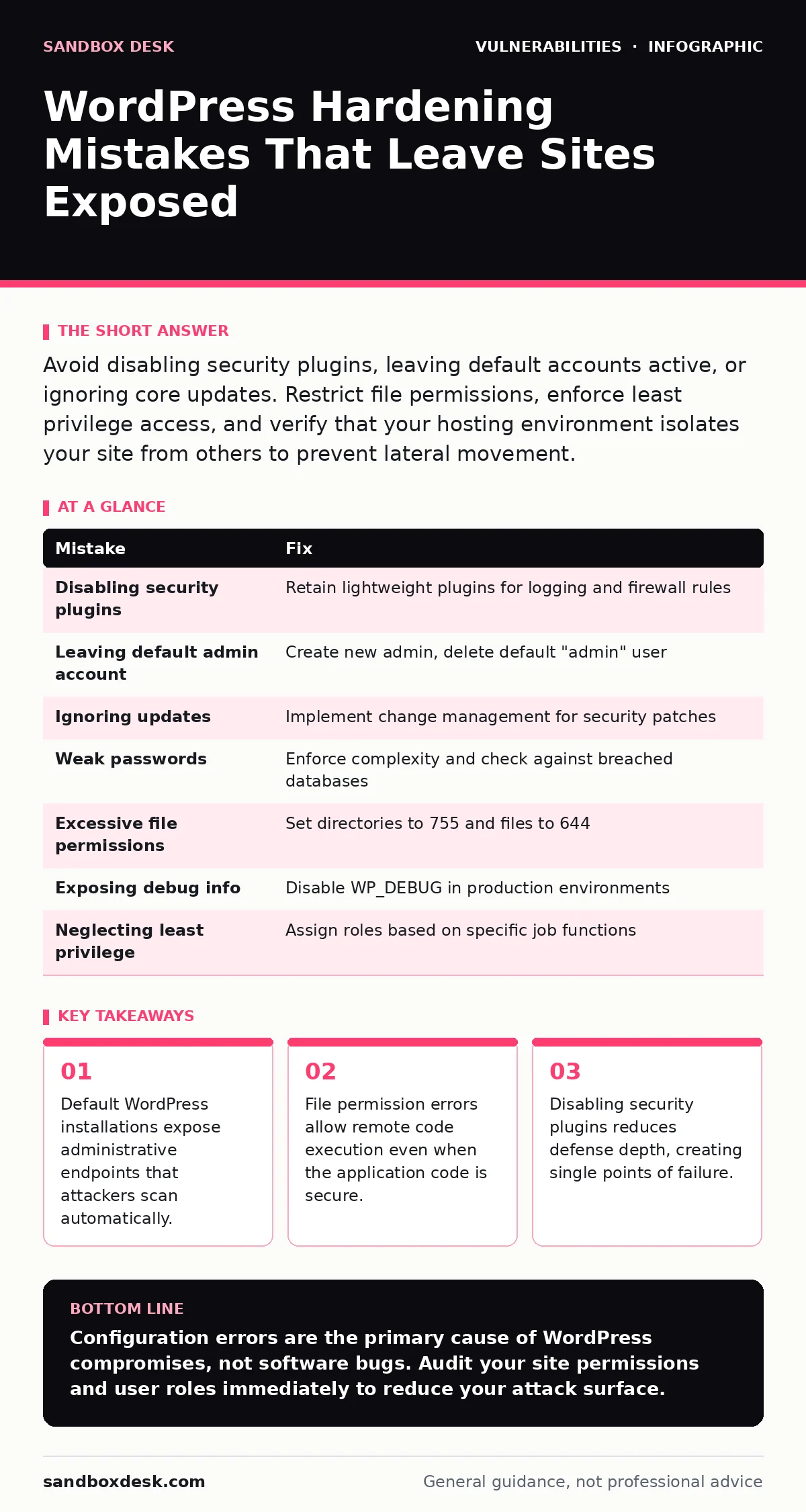
| Mistake | Fix |
|---|---|
| Disabling security plugins | Retain lightweight plugins for logging and firewall rules |
| Leaving default admin account | Create new admin, delete default "admin" user |
| Ignoring updates | Implement change management for security patches |
| Weak passwords | Enforce complexity and check against breached databases |
| Excessive file permissions | Set directories to 755 and files to 644 |
| Exposing debug info | Disable WP_DEBUG in production environments |
| Neglecting least privilege | Assign roles based on specific job functions |
Key takeaways
- Default WordPress installations expose administrative endpoints that attackers scan automatically.
- File permission errors allow remote code execution even when the application code is secure.
- Disabling security plugins reduces defense depth, creating single points of failure.
Configuration errors are the primary cause of WordPress compromises, not software bugs. Audit your site permissions and user roles immediately to reduce your attack surface.
Frequently asked questions
How do I know if my WordPress site has been hacked?
Look for unexpected admin users, unfamiliar plugins, or changes to site content. Monitor server logs for unusual outbound connections or high CPU usage.
Is it safe to use WordPress for high-security applications?
WordPress can be secure if properly hardened. However, it requires strict adherence to update policies and least privilege access. Custom development may be safer for highly sensitive data.
What is the CVSS score and why does it matter?
The CVSS score rates the severity of vulnerabilities. Higher scores indicate more critical flaws that require immediate patching. Check the National Vulnerability Database for current scores.
Can I prevent cross-site WebSocket hijacking?
Ensure that WebSocket connections require authentication tokens. Validate the origin header on the server side to prevent unauthorized access to real-time data streams.
How this guide was produced: written by the Sandbox Desk editorial team with AI assistance, checked against the public references listed below, and reviewed when the facts change. See our editorial policy or report an error.